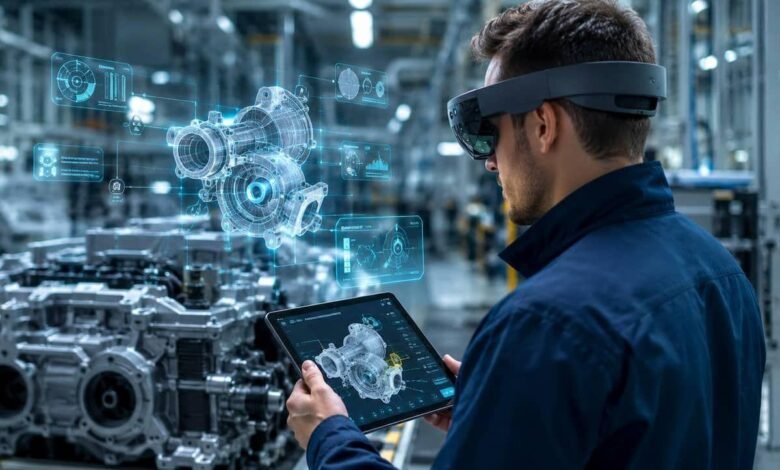
Imagine a factory technician who can see a machine’s internal components without opening its casing, or an engineer who can examine a digital version of an entire production line while standing inside the actual facility. These experiences are becoming possible through spatial computing.
Spatial computing is changing how industries connect digital information with physical environments. By combining technologies such as augmented reality (AR), virtual reality (VR), artificial intelligence (AI), sensors, and three-dimensional (3D) modeling, businesses can make digital information more useful in real-world situations.
Instead of relying entirely on computer screens, printed manuals, or separate monitoring systems, workers can interact with digital models in ways that relate directly to their surroundings. This approach has growing potential in manufacturing, construction, healthcare, logistics, energy, and other industrial sectors.
As businesses look for better ways to manage complex operations, spatial computing offers a practical connection between digital planning and physical work.
What Is Spatial Computing?
Spatial computing refers to technologies that allow computers to understand, represent, and interact with physical spaces. These systems can recognize objects, track movement, interpret spatial relationships, and place digital information within a real or simulated environment.
For example, an industrial worker wearing augmented reality glasses might see maintenance instructions positioned beside the machine that needs attention. An architect could explore a three-dimensional building model to identify design conflicts before construction begins.
Spatial computing can include several connected technologies:
- Augmented reality: Adds digital information to a person’s view of the real world.
- Virtual reality: Creates an immersive digital environment for training, simulation, or design.
- Mixed reality: Allows digital objects to appear integrated with the physical environment and, in some systems, respond to it.
- Digital twins: Virtual representations of physical assets, processes, or systems that can be updated with real-world data.
- Spatial mapping and sensors: Help systems understand the position, shape, and movement of objects within an environment.
These technologies serve different purposes, but they can work together to help businesses understand and manage physical operations more effectively.
How Spatial Computing Connects Digital Models With Physical Workplaces
Traditional digital models are often viewed on desktop computers or tablets. Spatial computing changes this relationship by allowing relevant information to appear in the context of the physical environment.
Consider a manufacturing plant that uses a digital model of its production equipment. Engineers can compare the model with the actual machine, inspect component layouts, and review available sensor data. If the model is connected to suitable real-time data sources, workers may also be able to view operating conditions or identify potential maintenance requirements.
This connection depends on the quality of the underlying data, the accuracy of the model, and the capabilities of the devices being used.
Spatial computing can support industrial work in several ways.
1. Visualizing Equipment Before Making Changes
Industrial upgrades can be expensive and difficult to reverse. Moving machinery, changing production layouts, or installing new equipment may interrupt normal operations if problems appear after implementation.
Spatial computing allows teams to examine proposed changes through 3D models before carrying them out. Engineers can visualize equipment placement, evaluate available space, and identify possible clashes between machines, pipes, electrical systems, and walkways.
For example, a factory planning to introduce a new robotic arm could use a spatial model to examine its working area and relationship with nearby equipment. This can help teams identify design issues earlier and make better-informed decisions.
2. Improving Maintenance and Repair Work
Maintenance teams often depend on technical manuals, diagrams, and instructions stored in separate systems. Finding the right information while working on complicated equipment can take time.
With spatial computing, digital instructions can be displayed in relation to the equipment being serviced. A technician might view the location of a component, follow a sequence of repair steps, or compare a physical assembly with its digital reference.
Remote assistance is another useful application. An experienced engineer can guide a technician at a different location by sharing visual information and explaining what to inspect.
These tools do not replace technical expertise. Instead, they can help workers access relevant information and follow established procedures more efficiently.
3. Connecting Digital Twins With Real Operations
A digital twin is a digital representation of a physical asset, process, or environment. Depending on its design, it may incorporate information from sensors, operational databases, simulations, and engineering models.
Spatial computing can make a digital twin easier to explore by presenting its information in a three-dimensional environment or placing relevant data alongside the physical asset.
For instance, an energy facility could use a digital representation of its equipment to examine operating conditions and understand how different components relate to one another. Engineers could use the model to investigate a developing issue before deciding whether an inspection or intervention is necessary.
The important distinction is that a digital model is not automatically a live digital twin. Its usefulness depends on how accurately it represents the real asset and how frequently its data is updated.
4. Supporting Workforce Training
Industrial training frequently involves equipment that is expensive, dangerous, or unavailable for repeated practice. Spatial computing can provide simulated environments where employees learn procedures without immediately interacting with operational machinery.
A new employee might practice inspecting a production system, identifying hazards, or responding to a simulated equipment failure. Virtual environments can also help teams prepare for unusual situations that are difficult to reproduce during normal operations.
Augmented and mixed reality can support training directly on the shop floor by presenting visual guidance alongside physical equipment.
The objective is not simply to make training more engaging. Well-designed programs should help employees develop practical skills, understand procedures, and demonstrate that they can perform tasks correctly.
5. Making Warehouses and Logistics Operations Easier to Manage
Warehouses contain large numbers of products, storage locations, vehicles, and moving workers. Keeping track of these elements can be challenging, particularly in large or frequently changing facilities.
Spatial computing can help workers understand where items are located and how physical spaces are organized. Depending on the system, visual guidance may support picking routes, inventory identification, equipment navigation, or the placement of incoming goods.
For example, a worker using a compatible wearable device might receive visual directions to a particular storage location instead of repeatedly consulting a handheld screen.
When combined with accurate inventory data and warehouse management software, these applications may reduce unnecessary movement and help employees complete tasks with greater confidence.
Industries Where Spatial Computing Is Making a Difference
Spatial computing is relevant to more than one type of business. Its applications depend on the physical environment, the complexity of the work, and the quality of the available digital information.
Manufacturing
Manufacturers can use spatial computing to visualize production lines, support equipment maintenance, train employees, and evaluate factory layouts. Connecting spatial models with operational data can also help engineering teams understand how equipment performs within a wider production system.
Construction and Architecture
Construction teams can compare building designs with actual site conditions. Three-dimensional models can help identify potential conflicts between structural components, electrical installations, and plumbing systems before these issues become costly changes.
On-site visualization can also help contractors understand design intent and communicate more clearly with architects and engineers.
Healthcare
Hospitals and medical training institutions can use spatial technologies to visualize anatomical structures, support medical education, and plan certain procedures. The value of these applications depends on clinical suitability, system accuracy, and appropriate professional oversight.
Energy and Utilities
Power plants, renewable energy installations, and utility networks contain equipment that may be difficult to access or inspect. Spatial models can help teams understand asset layouts, review technical information, and prepare maintenance activities.
For geographically distributed infrastructure, spatial visualization can also make complex asset information easier to interpret.
Automotive and Aerospace
Automotive and aerospace organizations can use spatial computing during product design, assembly planning, inspection, and workforce training. Engineers can examine components in three dimensions and evaluate how different parts fit together before physical production.
Because these industries often involve strict safety and quality requirements, spatial tools must be integrated into established engineering and inspection processes.
Benefits of Connecting Digital Models With Real Workplaces
Spatial computing can create value when it solves a clearly defined operational problem rather than simply adding another layer of technology.
Better understanding of complex systems: Three-dimensional visualization can make equipment layouts, component relationships, and technical information easier to interpret.
Earlier identification of design problems: Teams can examine proposed changes in a digital environment before committing to expensive physical work.
More accessible technical guidance: Workers can receive relevant instructions in the context of the task they are performing.
Improved collaboration: Engineers, designers, technicians, and managers can discuss the same spatial model, even when they work in different locations.
More flexible training: Organizations can create repeatable practice environments for tasks that are difficult or risky to reproduce in real workplaces.
Potential reductions in rework and downtime: When spatial tools help teams identify errors earlier or perform maintenance more effectively, businesses may reduce avoidable disruptions. Actual results depend on implementation and should be measured against operational data.
Challenges Businesses Need to Consider
Despite its potential, spatial computing is not a straightforward solution for every industrial problem. Businesses need to evaluate technical, financial, and operational requirements before investing.
High Initial Costs
Spatial computing projects may require headsets, compatible devices, software licenses, model development, sensors, and integration with existing systems. Organizations should identify a specific business need and estimate the total cost before expanding a project.
Data Accuracy and Model Maintenance
A digital representation becomes less useful when it no longer reflects the physical environment. Equipment changes, facility modifications, and outdated sensor information can create differences between a model and reality.
Businesses need processes for updating models, validating information, and identifying when displayed data may be incomplete.
Integration With Existing Systems
Industrial organizations may already use enterprise resource planning (ERP) platforms, manufacturing execution systems (MES), computer-aided design (CAD) software, and maintenance management tools.
Connecting these systems can require specialized integration work. Without reliable data exchange, spatial computing may create another isolated information source instead of improving existing workflows.
Worker Comfort and Adoption
Wearable devices can cause discomfort, limit battery life, or become inconvenient during long shifts. Some tasks may also be better suited to conventional displays or hands-free audio instructions.
Employees should be involved in testing devices and designing workflows. Training and feedback are essential to making the technology useful in everyday work.
Privacy and Cybersecurity
Spatial systems may collect information about workers, facilities, equipment, and operational activities. Businesses must determine what data is necessary, who can access it, and how it will be protected.
Secure device management, appropriate access controls, clear data policies, and regular software updates are important parts of deployment.
Safety and Reliability
Digital overlays and automated guidance must not distract workers or provide misleading information. Poorly aligned models, delayed data, or incorrect instructions could create risks in industrial environments.
Organizations should validate systems under real working conditions and maintain established safety procedures, particularly for high-risk operations.
How Businesses Can Get Started With Spatial Computing
A successful implementation usually begins with a focused use case rather than a company-wide transformation.
Step 1: Identify a specific problem. Look for a process where workers struggle with complex instructions, equipment visualization, training, or spatial coordination.
Step 2: Review existing digital assets. Determine whether suitable CAD models, digital twins, sensor feeds, and operational data are already available. Assess their accuracy and completeness.
Step 3: Choose the right technology. Augmented reality may suit on-site instructions, while virtual reality may be more appropriate for simulated training. A digital twin may be valuable when the goal is to understand an asset using connected operational data.
Step 4: Run a small pilot. Test the system with a limited group of employees and a clearly defined workflow. Collect feedback from both technical teams and the people who will use it daily.
Step 5: Measure the results. Track relevant indicators such as task completion time, error rates, training performance, maintenance delays, and user adoption. Compare the results with a suitable baseline.
Step 6: Expand based on evidence. If the pilot delivers measurable value, improve the implementation and extend it to similar tasks. Address integration, support, security, and training requirements before scaling.
This step-by-step approach helps organizations learn what works before committing to a larger investment.
The Future of Spatial Computing in Industry
Spatial computing is likely to become more capable as hardware, artificial intelligence, sensors, and three-dimensional modeling continue to develop.
AI could help interpret visual information, identify relevant instructions, and make industrial interfaces more responsive to a worker’s task. Improved spatial mapping may help digital objects align more accurately with physical surroundings. Advances in digital twins could also make it easier for teams to explore the relationship between equipment conditions, operating processes, and planned changes.
Another important development is the growing emphasis on interoperability. Industrial environments rarely depend on one software platform or device. Solutions that exchange data reliably across existing systems may be more practical than tools that operate independently.
However, broader adoption will depend on more than technological progress. Costs, usability, cybersecurity, data quality, and demonstrable business value will influence which applications succeed.
The most useful systems will be those that fit naturally into existing work, provide trustworthy information, and help employees make better decisions without adding unnecessary complexity.
Conclusion
Spatial computing is helping industries bring digital information closer to the physical tasks it is intended to support. By connecting three-dimensional models, real-world environments, and operational data, businesses can improve visualization, support maintenance, strengthen training, and plan complex activities with greater clarity.
Its value does not come from using immersive technology for its own sake. The real opportunity lies in solving practical problems that affect productivity, safety, coordination, and decision-making.
For organizations exploring digital transformation, starting with one measurable workplace challenge is a sensible way to evaluate spatial computing. As the technology matures, its strongest applications will likely be those that connect accurate digital information with the people who need it at the right moment.
Frequently Asked Questions
1. What is spatial computing in industry?
Spatial computing connects digital models with physical workplaces using technologies such as augmented reality, virtual reality, sensors, and 3D modeling.
2. How does spatial computing improve manufacturing?
It helps manufacturers visualize equipment, support maintenance, improve workforce training, and identify production layout problems before making physical changes.
3. What is the role of digital twins in spatial computing?
Digital twins represent physical assets or processes digitally. Spatial computing helps workers visualize these models and understand relevant operational information.
4. What are the main challenges of spatial computing?
Key challenges include implementation costs, data accuracy, system integration, cybersecurity, device comfort, and workplace safety.