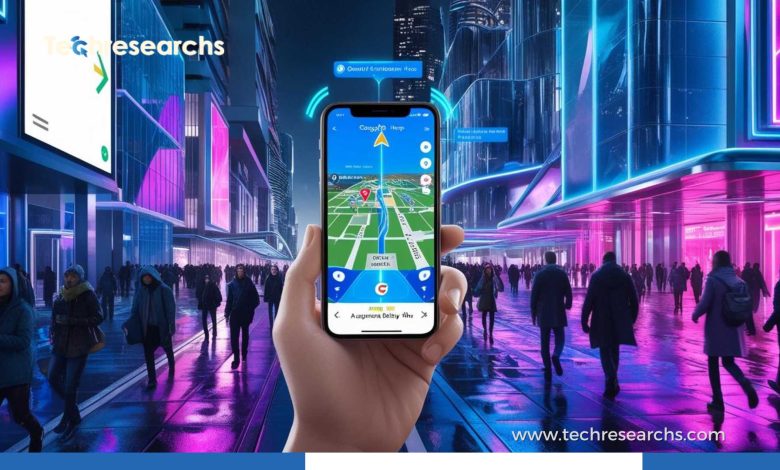
Getting lost in an unfamiliar place can be frustrating. You may know the destination, but figuring out which street to take, where to turn, or whether you’re walking in the right direction is another challenge altogether.
This is where Google Maps augmented reality can make a difference.
Instead of asking users to constantly look at a traditional map, augmented reality can bring navigation instructions into the real world through a smartphone camera. Arrows, directions, and location information can appear over the surroundings, making it easier to understand where to go.
As mapping technology, artificial intelligence, and computer vision continue to improve, AR navigation is becoming an interesting part of the future of digital maps.
What Is Google Maps Augmented Reality?
Google Maps augmented reality refers to AR-based navigation features that help users understand directions by combining digital information with their physical surroundings.
Google’s Live View is one example. When supported, users can use their smartphone camera to view their surroundings while Google Maps provides visual guidance.
Rather than only seeing a route drawn on a flat map, users can receive directional information that relates to the streets and buildings they are actually looking at.
This can be particularly helpful when you’re walking through an unfamiliar neighborhood or trying to find a specific location in a busy city.
How Does Google Maps AR Navigation Work?
AR navigation may look simple on the screen, but several technologies work behind the scenes to make it possible.
GPS Determines Your Location
GPS provides the basic location information needed to determine where you are and where you’re heading.
However, GPS alone isn’t always precise enough for detailed pedestrian navigation, especially in areas surrounded by tall buildings.
Your Camera Adds Visual Information
The smartphone camera allows the navigation system to understand more about the environment around you.
It can help connect digital mapping information with recognizable features in the real world.
Computer Vision Helps Identify Your Surroundings
Computer vision technology can analyze visual information and help determine the user’s position relative to mapped locations.
This can make navigation more useful when GPS signals aren’t perfectly accurate.
Mapping Data Provides the Route
Google Maps already has extensive geographic information about roads, streets, businesses, landmarks, and other locations. AR navigation uses this information to provide directions within the user’s surroundings.
The result is a navigation experience that feels more connected to the physical world.
Why Is AR Navigation Useful?
The biggest advantage of AR navigation is that it can reduce the amount of guesswork involved in finding your way.
Imagine walking out of a railway station in a city you’ve never visited before. You open Google Maps, but several streets appear around you. Looking at a small map doesn’t immediately tell you which direction you’re facing.
An AR view can make that situation easier by showing directional guidance based on what you’re seeing around you.
1. Makes Walking Directions Easier
Walking directions can sometimes be harder to follow than driving directions. AR guidance can provide a clearer indication of where you should walk next.
2. Helps With Confusing Intersections
Large intersections and clusters of nearby streets can make traditional maps difficult to interpret. Visual directions can help users understand which street or path they need to follow.
3. Useful for Travelers
Tourists can benefit from AR navigation when exploring unfamiliar cities. Instead of constantly switching between the map and their surroundings, they can use visual guidance to stay on track.
4. Connects Maps With Real Locations
Traditional maps show you where something is. AR has the potential to show you where that location is in relation to what you’re actually seeing.
That difference can make navigation feel much more intuitive.
Google Maps Live View: A Practical Example
Google’s Live View feature gives users an idea of what AR navigation can look like in everyday use.
When available, users can activate the camera-based view while walking. The application can then display directional information over the camera view.
For example, if you need to turn left at the next street, visual guidance can help indicate the direction instead of forcing you to repeatedly interpret a conventional map.
This doesn’t mean traditional maps are becoming unnecessary. The standard map remains useful for understanding the complete route, checking alternative paths, and planning a journey.
AR simply provides another way to understand the route.
How Artificial Intelligence Supports AR Navigation
Artificial intelligence is becoming an important part of modern navigation technology.
Mapping systems need to process enormous amounts of information, from geographic data to visual details about buildings and streets.
AI and computer vision can help interpret this information and improve how navigation systems understand locations.
For example, a navigation system may need to determine whether the person holding the phone is standing near a particular building, facing toward a certain street, or approaching an intersection.
The more effectively these systems can interpret the environment, the more useful AR navigation can become.
AR Navigation Compared With Traditional Maps
Both approaches have their strengths.
| Traditional Google Maps | AR Navigation |
|---|---|
| Shows routes on a map | Shows directions alongside the camera view |
| Excellent for planning journeys | Useful for understanding immediate surroundings |
| Easier to view an entire route | Can make individual turns easier to understand |
| Usually uses fewer device resources | Camera and sensors can consume more battery |
| Works well for driving and general planning | Particularly useful for pedestrian navigation |
The future is unlikely to be about choosing one over the other. Instead, users may switch between conventional maps and AR depending on what they need.
What Are the Limitations?
AR navigation is promising, but it isn’t perfect.
Battery Usage
Keeping the camera, GPS, display, and other sensors active can drain a smartphone battery faster.
If you’re traveling for several hours, carrying a power bank can still be a smart idea.
GPS Isn’t Always Perfect
Urban environments with tall buildings can interfere with location accuracy. AR and visual positioning can help, but they don’t eliminate every positioning problem.
Weather and Visibility
Heavy rain, poor lighting, glare, or crowded environments may make camera-based navigation less convenient.
Not Every Device Has the Same Experience
AR capabilities can vary depending on the smartphone, operating system, location, and available application features.
Safety Still Comes First
Perhaps the most important limitation has nothing to do with the technology itself.
Walking while staring continuously at a phone can be dangerous. Users should check directions when needed but remain aware of vehicles, cyclists, other pedestrians, and changes in their surroundings.
Could AR Glasses Replace the Smartphone Screen?
This is where things become even more interesting.
Today, most AR navigation experiences require users to hold up a smartphone. Future AR glasses could potentially display directions directly within the user’s field of view.
Instead of looking down at a phone, a person could see a subtle directional indicator while continuing to look ahead.
This could make navigation feel much more natural.
AR glasses could eventually combine navigation with other information, such as nearby points of interest, public transportation information, accessibility details, and local recommendations.
The Future of Google Maps Augmented Reality
The future of AR navigation will likely depend on improvements in several areas.
We can expect continued development in:
- More accurate positioning
- Better recognition of buildings and landmarks
- Smarter AI-powered navigation
- Improved indoor navigation
- Accessibility-focused directions
- More useful walking and cycling guidance
- Integration with AR glasses and wearable devices
- More personalized location-based information
The goal isn’t simply to put more graphics on a screen. The real opportunity is to make digital navigation feel like a natural part of the physical environment.
Is Google Maps AR Worth Using?
For people who frequently walk in unfamiliar places, travel to new cities, or struggle with complicated intersections, AR navigation can be genuinely useful.
It won’t replace every feature of traditional Google Maps, and it isn’t necessary for every journey. But when you’re standing somewhere unfamiliar and wondering which way to go, visual guidance can save time and reduce confusion.
That’s where the technology really proves its value.
Final Thoughts
Google Maps augmented reality represents a significant step toward more intuitive navigation.
Instead of forcing people to constantly translate a digital map into the physical world, AR can bring navigation information closer to the environment they’re actually experiencing.
The technology still has room to improve, but the direction is clear. As AI, computer vision, mapping data, smartphones, and AR wearables continue to develop, navigation could become increasingly visual and personalized.
For now, Google Maps AR offers a practical glimpse of that future—one where finding your way may feel less like reading a map and more like simply knowing where to go.
Frequently Asked Questions
What is Google Maps augmented reality?
Google Maps augmented reality uses your smartphone camera, location data, and visual guidance to help you navigate by showing directions in the context of your real-world surroundings.
How does Google Maps AR navigation work?
Google Maps AR combines GPS, mapping data, your phone’s camera, and visual positioning technology to provide directions that relate to the streets and buildings around you.
Is Google Maps AR useful for walking?
Yes. AR navigation can be particularly helpful for walking in unfamiliar areas because visual directions can make turns, streets, and nearby landmarks easier to understand.
Will AR navigation replace traditional maps?
AR navigation is unlikely to completely replace traditional maps. Instead, it can complement them by providing visual guidance when users need help understanding their immediate surroundings.