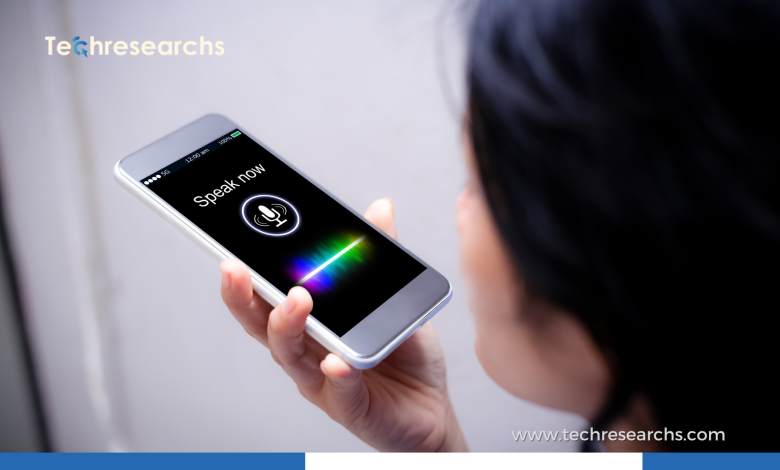
Voice-activated technology has moved far beyond simple commands such as setting alarms, playing music, or checking the weather. In 2025, advances in artificial intelligence, natural language processing, speech recognition, and edge computing are making voice interaction more conversational, contextual, and useful across smartphones, smart homes, vehicles, healthcare, customer service, and business applications.
Voice AI is also becoming an important business technology. A 2025 survey of business leaders found that 67% considered voice AI foundational to their product or business strategy, while 84% planned to increase voice-technology budgets.
What Is Voice-Activated Technology?
Voice-activated technology allows users to interact with digital systems through spoken commands or natural conversation. The technology generally combines several components:
- Automatic Speech Recognition (ASR): Converts spoken language into text or machine-readable input.
- Natural Language Processing (NLP): Determines what the user means.
- Artificial Intelligence: Helps systems reason, generate responses, and complete tasks.
- Text-to-Speech (TTS): Converts digital responses into spoken language.
- Machine Learning: Helps systems improve recognition and personalization.
- Cloud and Edge Computing: Processes voice requests either remotely or directly on compatible devices.
Recent advances in deep learning and large-scale models have significantly improved automatic speech recognition compared with earlier systems.
Why Voice Technology Is Changing in 2025
Traditional voice assistants were largely command-driven. Users often needed to phrase requests in specific ways for the system to understand them.
In 2025, the focus shifted toward conversational AI. Modern assistants can increasingly handle follow-up questions, interruptions, contextual requests, and more complex interactions. AI assistants also became more integrated into everyday applications and devices rather than operating only through standalone smart speakers.
This transition is creating a new model of human-computer interaction where speaking can become as natural as typing or tapping.
Key Voice-Activated Technology Trends in 2025
1. Generative AI-Powered Voice Assistants
One of the biggest developments is the combination of generative AI with voice interfaces.
Instead of simply matching a spoken command to a predefined action, AI-powered assistants can understand more flexible language and generate responses dynamically. This makes interactions feel more conversational.
For example, instead of saying:
“Set thermostat to 22 degrees.”
A user could say:
“It’s getting warm in here. Can you make the room more comfortable?”
An advanced assistant may interpret the context and determine the appropriate action.
However, this flexibility also introduces reliability challenges. Generative AI can sometimes be less predictable than traditional rule-based systems, particularly when performing simple smart-home tasks.
2. More Natural and Human-Like Conversations
Voice systems are becoming better at handling natural speech patterns.
Modern systems increasingly support:
- Follow-up questions
- Interruptions
- Conversational context
- Different speaking styles
- More expressive voices
- Longer interactions
- Context-aware responses
This is important because people do not normally communicate using perfectly structured commands. Better conversational understanding can make voice interfaces easier for beginners and more accessible to users.
3. Multimodal Voice Interaction
Voice is increasingly being combined with other forms of input, including cameras, screens, gestures, and sensors.
For example, a user may ask a smartphone assistant about an object visible through the camera. Similarly, smart-home systems can combine voice commands with information from sensors and connected devices.
The combination of voice, vision, and sensor data is expected to create more context-aware interactions across smart homes, vehicles, and extended-reality environments.
4. Voice AI in Smart Homes
Smart-home technology remains one of the most visible applications of voice activation.
Users can control:
- Smart lights
- Thermostats
- Security cameras
- Door locks
- Appliances
- Entertainment systems
- Home automation routines
The next generation of smart-home assistants is moving toward conversational control rather than rigid commands.
Instead of individually controlling devices, users can describe what they want and allow AI to determine the required sequence of actions.
5. On-Device Voice Processing
Another important trend is processing more voice data directly on devices.
On-device processing can provide several advantages:
- Lower latency
- Better responsiveness
- Reduced dependence on internet connectivity
- Greater privacy
- Lower cloud-processing requirements
Lightweight AI models are making it increasingly practical to perform some voice-processing tasks locally. This is particularly valuable for smartphones, wearables, vehicles, and other devices where quick responses matter.
6. Voice Technology in Customer Service
Businesses are increasingly exploring AI voice agents for customer service and support.
Voice AI can potentially handle:
- Frequently asked questions
- Appointment scheduling
- Order processing
- Customer verification
- Basic troubleshooting
- Call routing
- Service requests
Research from Deepgram’s 2025 voice AI survey found that 80% of surveyed organizations were using traditional voice-agent systems, but only 21% were very satisfied with their existing technology. This gap is encouraging businesses to explore more capable AI voice agents.
7. Voice Biometrics and Authentication
Voice can also provide a biometric signal for identifying or authenticating users.
Voice-based authentication can potentially be used for:
- Banking services
- Customer support
- Account verification
- Device access
- Enterprise applications
However, voice biometrics must be implemented carefully because recorded or AI-generated voices can create security challenges. Organizations need strong authentication systems and additional security layers rather than relying on voice alone for high-risk transactions.
8. Multilingual Voice Assistants
Language support is another important area of development.
AI-powered systems are increasingly capable of recognizing multiple languages and switching between languages during conversations. Real-time translation and multilingual voice interfaces could make technology more accessible to international users and multilingual communities.
For countries such as India, where people commonly use multiple languages, better multilingual voice interfaces could be particularly valuable.
9. Voice Interfaces in Vehicles
Automotive manufacturers are integrating voice assistants into connected vehicles.
Drivers can potentially use voice commands to:
- Navigate
- Make calls
- Change music
- Adjust climate controls
- Send messages
- Access vehicle information
- Control connected services
Voice interaction can reduce the need to look at a screen, making it a useful interface while driving. Future systems are likely to combine voice with vehicle sensors and contextual information.
10. Voice AI for Accessibility
Voice technology can help make digital products more accessible.
People with certain visual, motor, literacy, or mobility challenges may find voice interaction easier than traditional keyboard or touchscreen interfaces.
As voice systems become better at understanding natural language, they can provide an alternative way to interact with websites, applications, smart devices, and digital services.
Benefits of Voice-Activated Technology
Voice interfaces offer several potential advantages:
Convenience
Speaking can be faster than typing for many everyday tasks.
Hands-Free Interaction
Users can interact with devices while cooking, driving, exercising, or performing other activities.
Accessibility
Voice can provide an alternative interface for people who find traditional input methods difficult.
Productivity
Voice assistants can help with reminders, information retrieval, scheduling, transcription, and other repetitive tasks.
Personalization
AI-powered assistants can increasingly adapt responses based on context and user preferences.
Challenges of Voice-Activated Technology
Despite rapid progress, voice technology still faces important challenges.
Privacy
Voice-enabled devices may process sensitive conversations or personal information. Companies need transparent data practices and strong privacy controls.
Accuracy
Background noise, accents, dialects, pronunciation differences, and uncommon terminology can still affect speech recognition.
Security
Voice cloning and synthetic speech create new risks for voice-based authentication.
Reliability
AI-powered systems can produce incorrect interpretations or responses. More conversational systems must still maintain reliability when controlling real-world devices.
Dependence on Connectivity
Cloud-based voice services may perform poorly when internet connectivity is limited, although on-device processing is helping reduce this dependency.
The Future of Voice-Activated Technology
The future of voice technology is likely to involve more than standalone voice assistants.
Voice will increasingly become one part of a broader AI interface that combines speech, vision, touch, gestures, sensors, and contextual information.
Enterprise adoption is also likely to grow. Deepgram’s 2025 research found that 84% of surveyed organizations planned to increase voice-technology budgets over the following year.
The biggest opportunity may be the development of voice AI agents capable of understanding a request, reasoning about the task, accessing relevant information, and completing multiple steps.
At the same time, developers will need to balance convenience with privacy, security, reliability, and user control.
Conclusion
Voice-activated technology in 2025 is evolving from simple command-based assistants into more sophisticated AI-driven interfaces. Generative AI, improved speech recognition, multimodal interaction, edge computing, smart-home integration, multilingual capabilities, and enterprise voice agents are helping reshape how people communicate with technology.
The most successful voice systems will not simply sound more human. They will need to understand context, respond reliably, protect user data, and provide meaningful assistance.
As these technologies continue to mature, voice could become an increasingly important interface for interacting with the digital world.
FAQ
1. What is voice-activated technology?
Voice-activated technology allows users to control devices, applications, and digital services using spoken commands. It uses technologies such as speech recognition, natural language processing, and artificial intelligence.
2. What are the major voice technology trends in 2025?
Major trends include generative AI voice assistants, more natural conversations, multimodal interaction, on-device voice processing, smart-home automation, multilingual assistants, voice biometrics, and AI-powered customer service.
3. How is AI improving voice-activated technology?
AI helps voice systems better understand natural language, context, accents, follow-up questions, and complex requests. Generative AI can also produce more conversational and personalized responses.
4. Is voice-activated technology secure?
Voice technology can be secure when combined with strong encryption, authentication, privacy controls, and other security measures. However, voice cloning and synthetic speech create new security risks, especially for voice-based authentication.